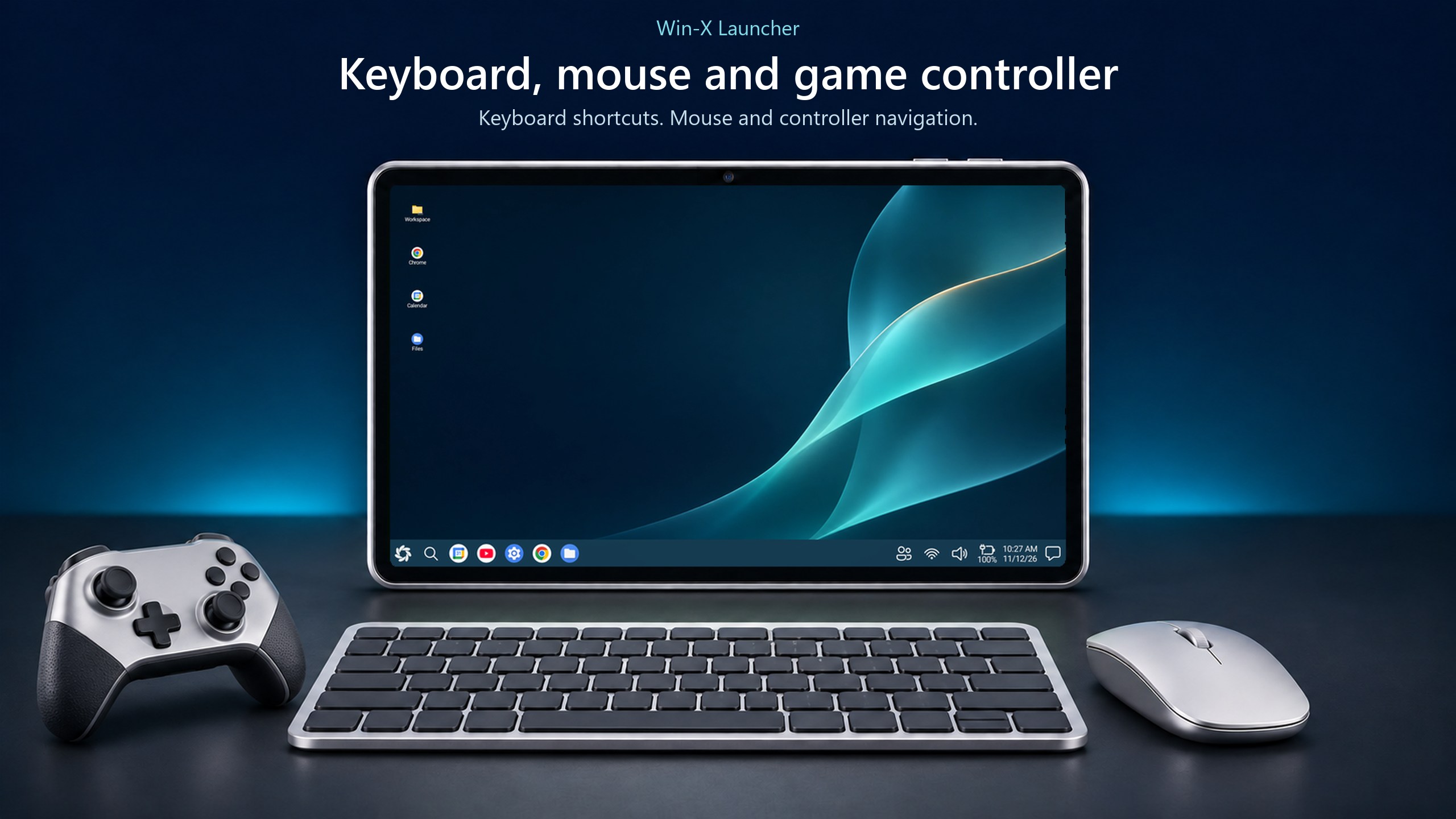
Use a keyboard, mouse, or controller
Open the Start panel or Search with keyboard shortcuts. Use a compatible mouse to interact with launcher controls, or a game controller to move between controls and select items.
A desktop-style home screen for Android
Bring the look and feel of a desktop PC to your phone or tablet with a customizable desktop, taskbar, and Start panel.
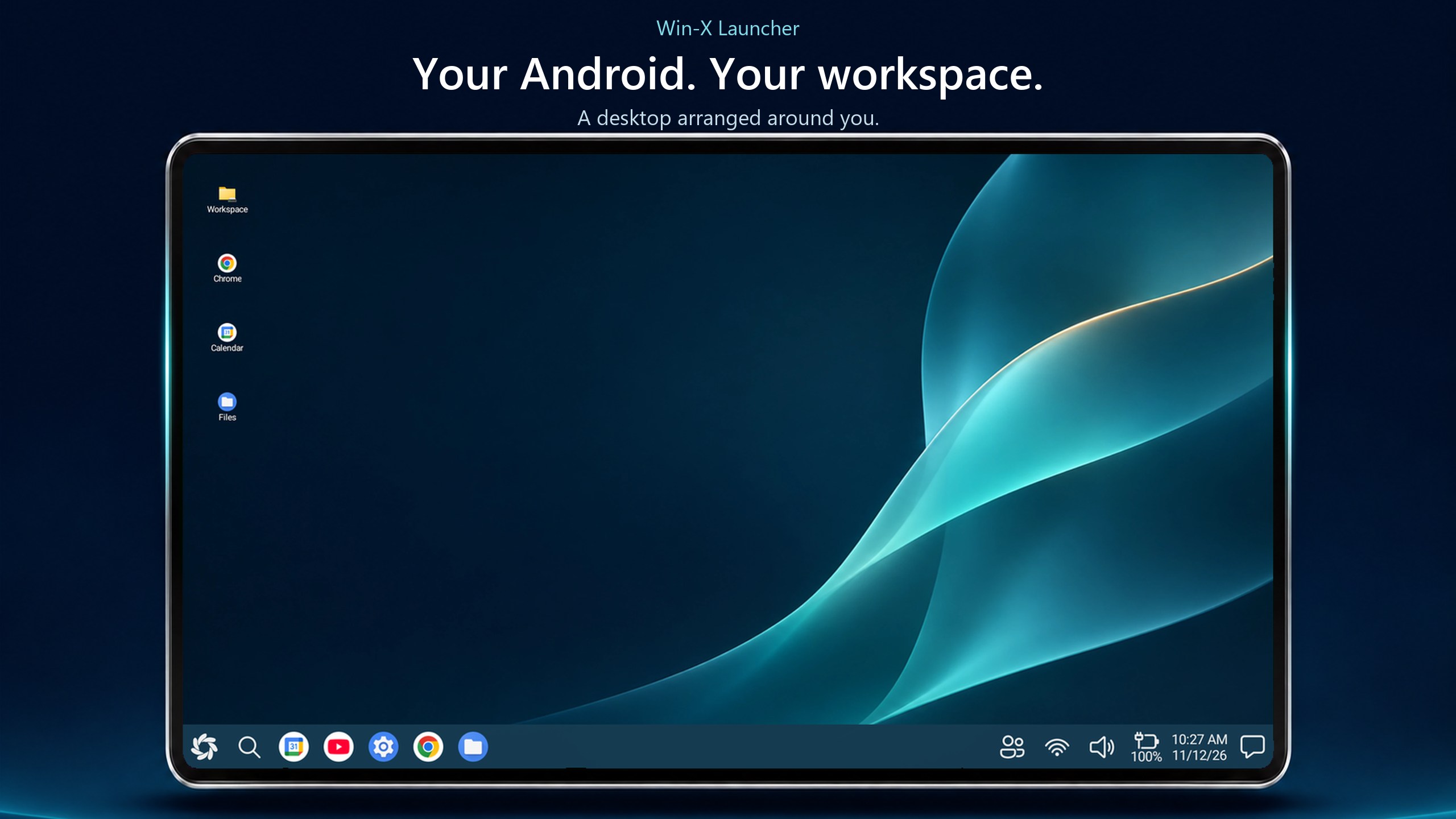
Choose Win-X as your Android home app and the Home button or gesture brings you back to your own desktop. Pin everyday apps to the taskbar and put shortcuts wherever they are easiest to reach. Move the taskbar to a different edge, adjust icon sizes, or apply an icon pack to make apps easier to recognize.
Start with the apps you open every day: pin Maps to the taskbar, place a calendar widget on the desktop, and leave the rest of your apps in Start. On a tablet, give the calendar enough room to see the week at a glance if your widget supports that view.
If work and personal apps compete for space, set up a second desktop. Keep your calendar and work shortcuts together on one, and use the other for reading, music, and photos. You can back up your layout before experimenting and restore it later.
Open the Start panel or Search with keyboard shortcuts. Use a compatible mouse to interact with launcher controls, or a game controller to move between controls and select items.
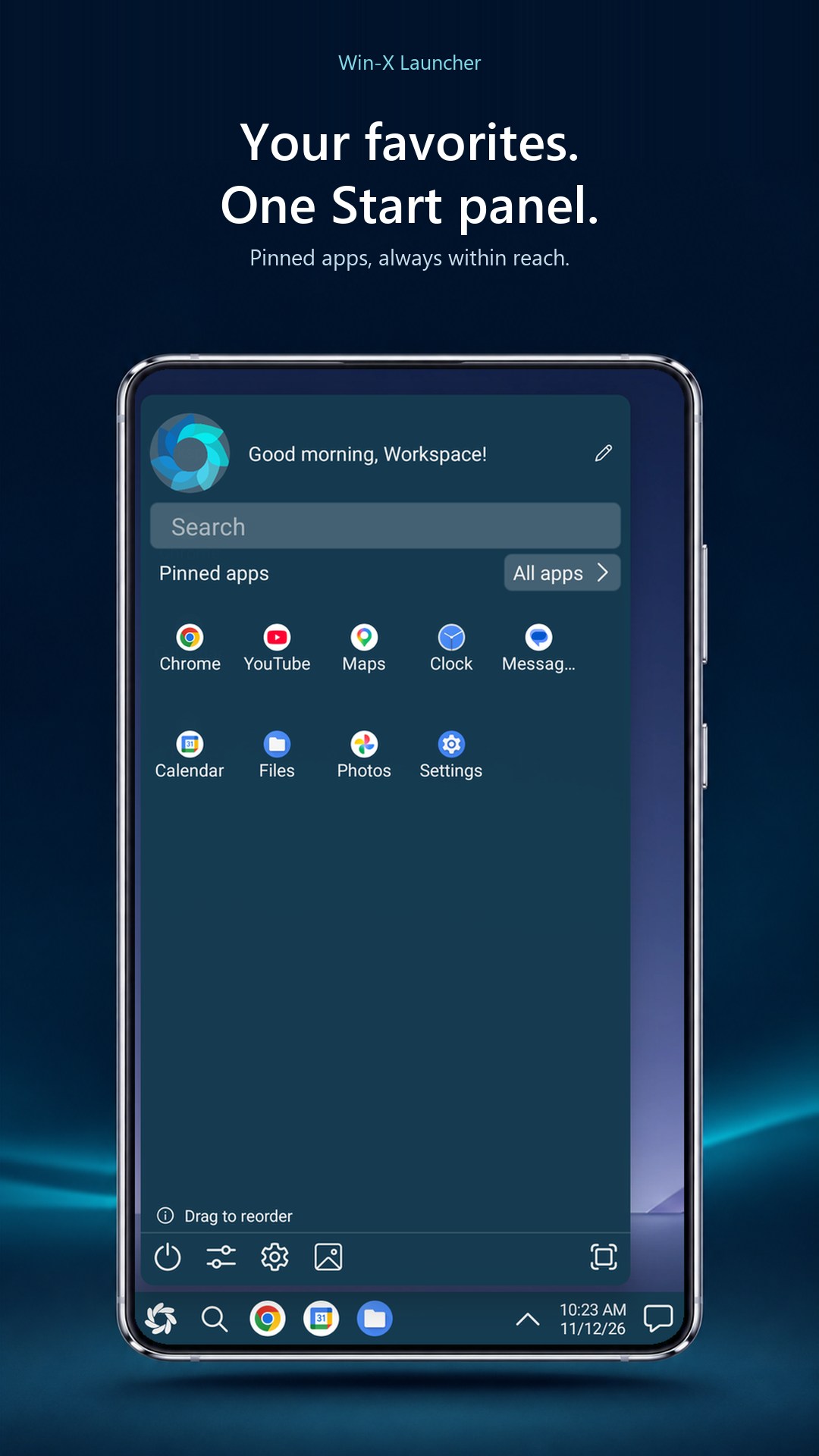
Pin the apps you use most often in the Start panel. Open All apps to browse everything installed on your device, or use Search to find an app by name. That gives you a place for favorites on a small screen and a quick way to reach an app you use only occasionally.
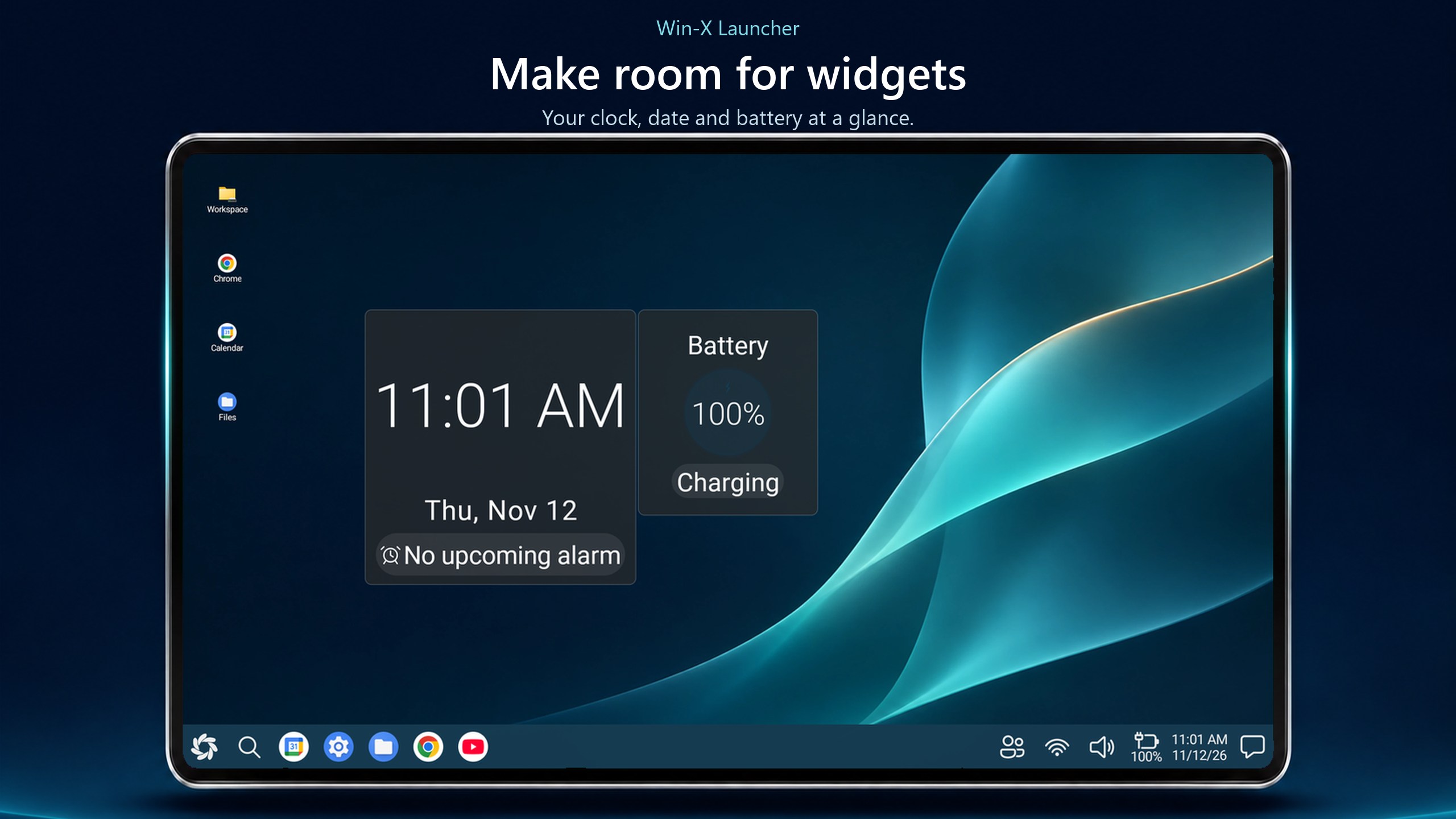
Place supported Android widgets alongside your shortcuts. The built-in clock and battery widgets shown here are one example. On a tablet, you can also leave room for a calendar or another widget you like to check throughout the day.
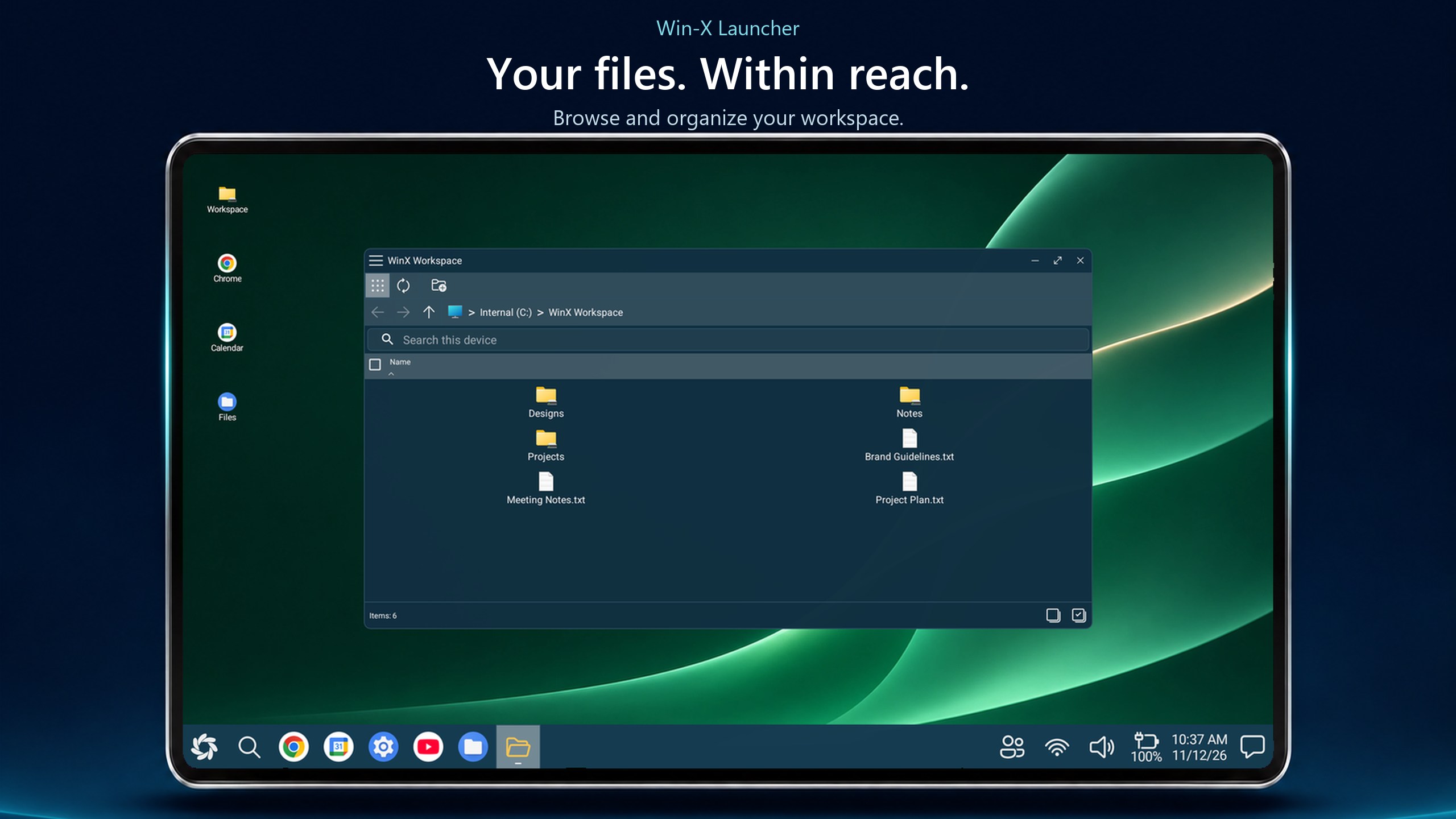
Use the built-in File Explorer to browse folders and find downloads or documents. Connect pCloud, Microsoft OneDrive, Google Drive, or Dropbox to browse that account alongside local storage. From File Explorer you can create a folder, rename a document, or copy a file to another location. Available operations depend on the provider.
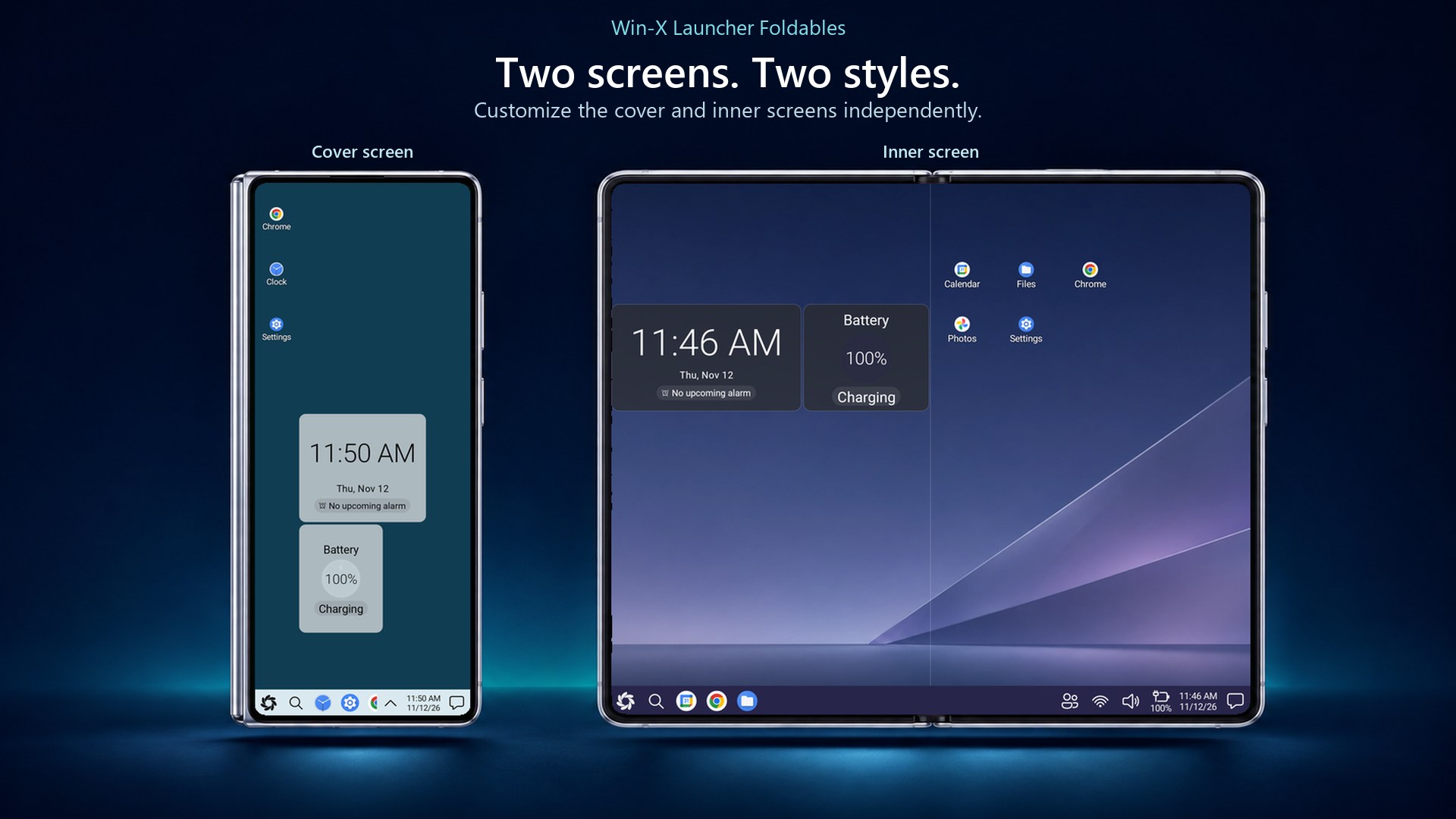
Give the cover screen a compact layout for quick access. For example, pin your phone and messaging apps on the cover for one-handed use. Open the device and give a calendar widget more room on the inner screen, with shortcuts to the apps you use alongside it. Each screen keeps its own arrangement.
All three editions offer the same launcher features. The differences are how you pay and which settings are already configured when you first open the app.
Choose Standard if you want to try the launcher first. It is free to install, and you can unlock premium features through an in-app purchase.
View on Google PlayChoose Ultimate if you prefer to pay once up front. Premium features are included, and the launcher opens with a preconfigured desktop layout you can customize.
View on Google PlayChoose Foldables if you use a folding phone and want a layout tailored to each screen from the start. It is a one-time upfront purchase, with settings preset for the cover and inner screens.
View on Google PlayWhich shortcut earns a permanent spot on your taskbar? Which widget is worth the space on a tablet or foldable? Share your setup or tell us what you would change in the Win-X Launcher community.